POS System With Barcode Scanner: Use a Scanner Gun or Your Phone's Camera With Dukaan POS
By Muhammad Waqas · · 5 min read
Typing product names at the counter is slow, and a queue makes it slower. A barcode turns a five-item sale into five beeps. But many small shops in Pakistan do not have a scanner yet, and plenty run their whole business from a phone.
That is why Dukaan POS supports two ways to scan: a counter barcode scanner (the scanner gun) on any device, and the phone's own camera on Android. This post explains how each works, how to set one up, and what happens when you scan something the shop has never sold before.
Two ways to scan a barcode
- Counter barcode scanner. Works on Android, Windows, macOS, Linux, iPhone and even the web version. Best for a busy counter.
- Phone camera. Works on Android phones and tablets. Best for a shop that runs from a phone, or for adding barcodes while unpacking a delivery.
Both end up in the same place: a scanned code is handled exactly as if it had been typed into the search box, so the rest of the app does not need to know which one you used.
Using a counter barcode scanner
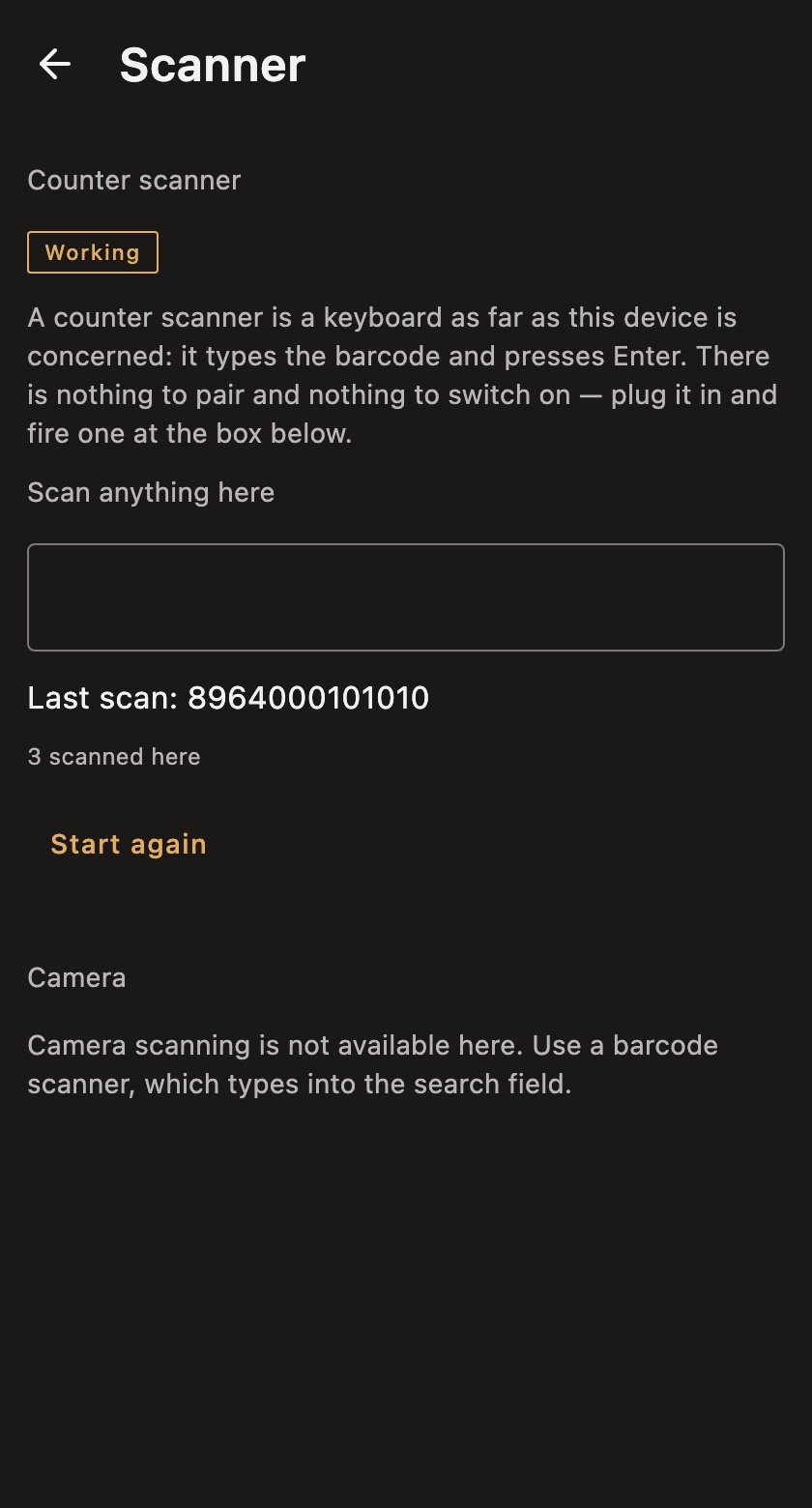
Most USB barcode scanners sold for shops behave like a keyboard. When they read a barcode, they "type" the numbers and then press Enter. Dukaan POS relies on exactly that, so there is nothing to pair, install or switch on. Plug the scanner into the computer or tablet, and scan into the sell screen. The product is added to the bill.
Checking that your scanner works
Open Settings → Scanner and scan anything into the test box. The screen shows the last code it read and how many scans it has seen, and marks the scanner as Working.
The most common setup problem is a scanner that sends the code but not the Enter key. Scans then seem to do nothing at the till. The test screen spots this and tells you to set the scanner to add a carriage return after each scan, which is usually done by scanning a setting barcode from the scanner's manual.
Scanning with your phone's camera
On Android, a camera button appears in the sell screen's search box and in the barcode field of the product form, but only on devices that have a camera. Tapping it opens a full-screen scanner with a framing guide, a torch button for dark corners, and cancel. The first barcode it reads closes the scanner and is handled just like a counter scan.
Why it works offline
Barcode reading happens on the phone itself, using Google's ML Kit model built into the app, with CameraX for the camera preview. Nothing is sent to the internet, which matters because the whole app is designed to work offline. The trade-off is size: the barcode reader adds roughly 5 MB to the install.
Only product barcodes
The camera scanner only looks for retail product barcodes. That makes reading faster, and it stops the camera from grabbing a payment QR code taped to the counter by mistake.
Camera permission
Android asks for camera permission the first time you open the scanner. If you decline, nothing breaks; you can still type the code in by hand.
What happens when a barcode is not in your list
New shops scan a lot of products that are not set up yet. When Dukaan POS reads a barcode it does not recognise, it opens the product form with the barcode already filled in, so you can add the product there and then. When you come back, the bill is still waiting, with nothing lost.
In a shop with several branches, only the owner adds products, so the product list stays the same everywhere. A branch that scans an unknown code gets Quick sale instead: an amount and an optional name on the bill, with no new product created. You can read more about that in the multi-branch POS guide.
Price check without making a sale
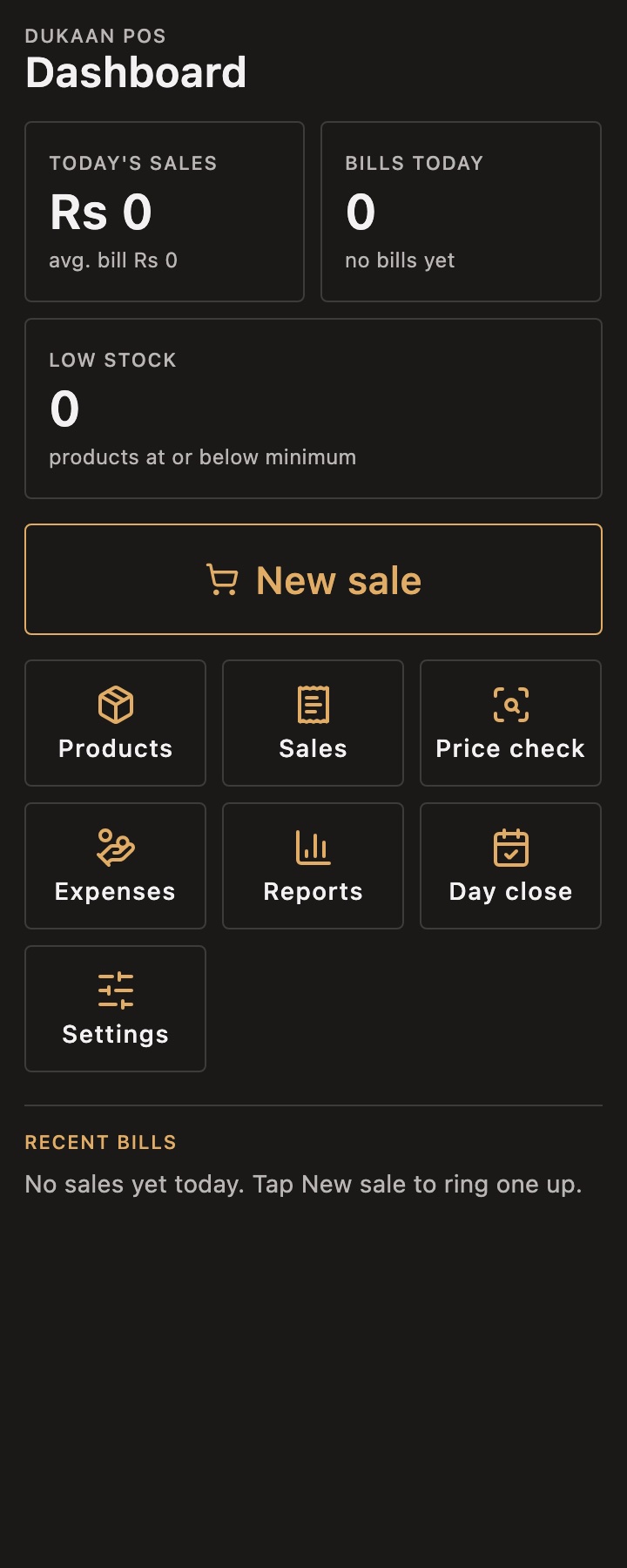
Customers often ask "yeh kitne ka hai?" while holding a product. Price check on the dashboard lets you scan or search an item and see its price without starting a bill.
Tips for choosing a barcode scanner
You do not need an expensive scanner. For a small shop, look for these:
- USB, keyboard mode. This is the simplest setup and works with Dukaan POS on every computer.
- Enter after each scan. Make sure it can add a carriage return (Enter) after each code. Most can, and the test screen will tell you.
- 1D is enough for most products. Standard product barcodes are 1D. A 2D scanner also reads QR codes, which you may not need at the counter.
- No scanner yet? Use your phone. On Android, the camera works well for a small shop or while you decide.
Bluetooth scanners that work in keyboard mode should behave the same way, but I have not tested one yet, so check with the test screen before relying on it.
Current limits
- Camera scanning is Android only. On iPhone, Windows, macOS, Linux and the web, the app says so and points you to a counter scanner.
- The app reads barcodes but does not print barcode labels yet, so products need to arrive with their own barcodes.
Frequently asked questions
Can I use my phone as a barcode scanner for my shop?
Yes, on Android. Tap the camera button in the sell screen's search box and point it at the barcode. It works without the internet.
Do I need special software for a USB barcode scanner?
No. A standard USB scanner acts like a keyboard. Plug it in and check it in Settings → Scanner.
Why does my scanner beep but nothing happens?
It is probably not sending Enter after the code. Set it to add a carriage return after each scan, using the setting barcodes in its manual.
Summary
Scanning should make the counter faster, not add another device to troubleshoot. Treating a scanner as a keyboard, reading barcodes offline on the phone, and never losing a bill when a new product turns up is how Dukaan POS keeps scanning simple.
For the full picture, read the guide to POS software in Pakistan, or see how a bill can be edited after payment. You can try the app in the live demo.
The camera scanner is a small example of on-device machine learning with ML Kit. If you want a feature like this in your own app, I work as an AI product engineer.