Supplier Ledger for Shops: How Dukaan POS Tracks Deliveries and What You Owe Suppliers
By Muhammad Waqas · · 5 min read
Every shopkeeper knows the saying "kis ka dena, kis se lena": who I owe, and who owes me. Most software only handles the second half. Customer udhaar gets a screen of its own, while supplier credit, the khareed side, stays on loose invoice slips in a drawer.
That half matters just as much. A delivery arrives, part of it is paid at the door, the rest goes "on account", and a month later nobody is sure what is still owed. This post explains how Dukaan POS keeps a supplier ledger next to the udhaar ledger, and how each delivery also keeps your stock and profit figures right.
Why supplier credit is hard to track
- Invoice slips go missing. The paper from the supplier is the only record, and it is easy to lose.
- Balances are guessed. Without a running total per supplier, it is hard to know what you really owe before the next delivery.
- Cost prices go out of date. A supplier raises rates, but the cost price in your records stays the same, so your profit looks better than it is.
- Disputes with suppliers. Without a statement of deliveries and payments, it is your memory against theirs.
Customers and suppliers in one place
In Dukaan POS, credit is one subject with two directions, so the Udhaar section has two tabs: Customers and Suppliers. A supplier's page reads exactly like a customer's, from the other side of the counter: what you owe them, a statement of everything that has passed between you, and two actions, Record delivery and Pay supplier.
Under the hood both sides use the same ledger code. That was a deliberate choice: one piece of arithmetic that serves both customers and suppliers cannot disagree with itself. If you have not seen the customer side yet, read how the udhaar khata works.
Recording a delivery
When goods arrive, open the supplier and choose Record delivery. You enter:
- The supplier's own invoice number, so both of you can refer to the same paper later.
- Each product that arrived and the quantity. Picking a product fills in what it cost last time, so you only change what has changed.
- The cost of each item this time.
- How much was paid at the door. Choose Paid in full if nothing is left on account.
Saving does four things in one step, and either all of them happen or none of them do:
- The goods are added to stock.
- Each product's cost price is updated to what you just paid.
- The delivery is saved with all its lines and the invoice number.
- Whatever was not paid at the door is added to what you owe that supplier.
Your sale price is left alone. Setting prices is your decision, not something a delivery should change behind your back. Obvious mistakes, such as a quantity of zero or a nonsense cost, are refused before anything is saved.
Expiry dates for pharmacies
For products that track expiry, such as medicines, the delivery also asks for the date printed on the box and an optional batch number. The app then sells the batch that expires first, which is the difference between stock and a write-off. There is more on this on the pharmacy POS software page.
Paying a supplier
Pay supplier lowers the balance and adds the payment to the statement. Two safety rules keep the ledger honest:
- Paying more against a delivery than it was worth is refused, and nothing is saved.
- If you pay a supplier in advance, the extra shows as Paid ahead on that supplier. It is not quietly subtracted from what you owe other suppliers, so your total owed never goes below zero by accident.
Deliveries with no invoice number simply read as "Delivery" on the statement, so you are never forced to invent a reference.
Why up-to-date cost prices matter for profit
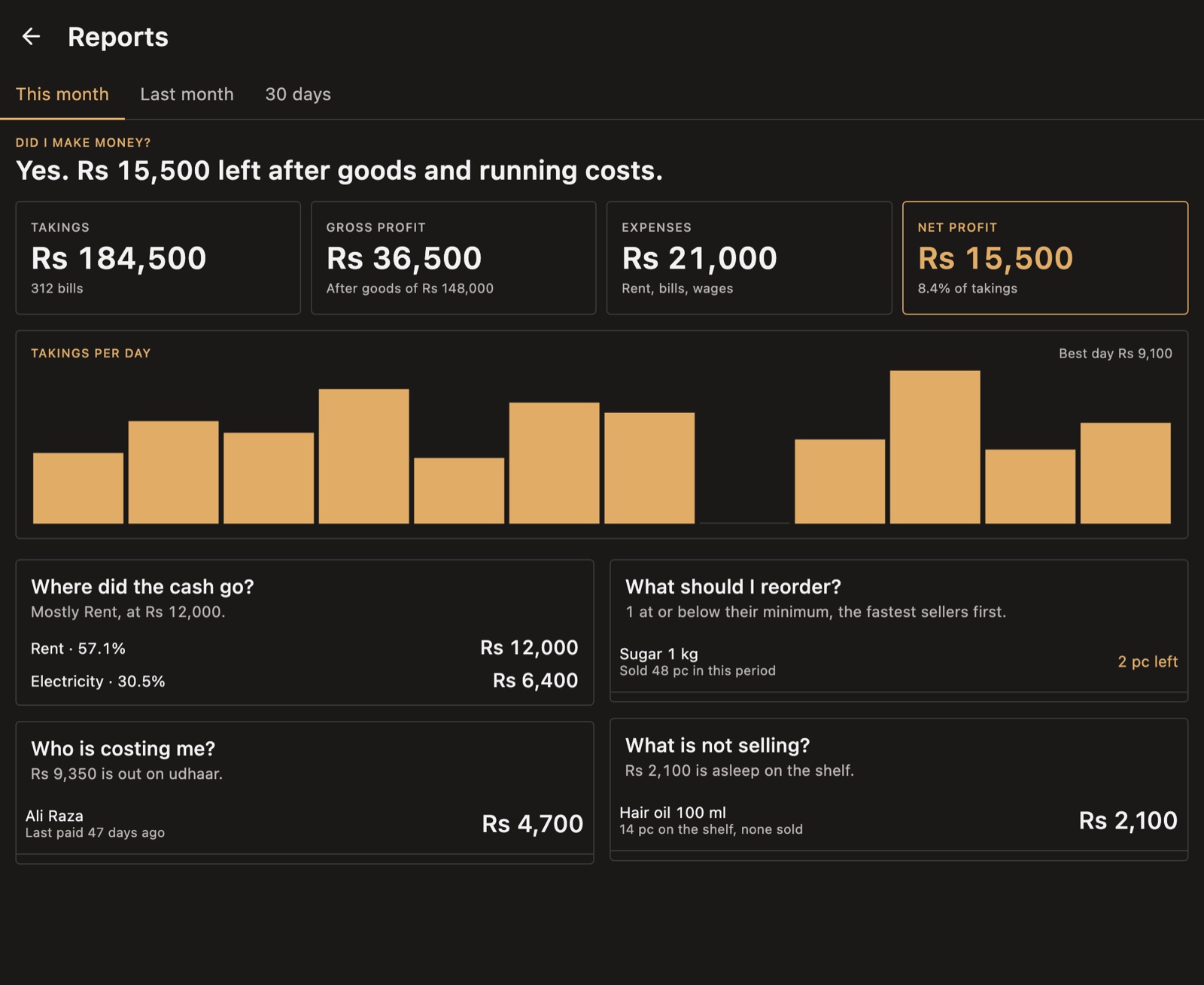
Every bill in Dukaan POS records what its goods cost the shop at the moment of the sale. Because each delivery updates the cost price, last month's profit is worked out at last month's costs, and this month's at this month's. The Reports screen can then answer "Did I make money?" honestly, after the cost of goods and running expenses.
Updating sale prices after a rate change
When a supplier's rates move, Update prices lets you raise or lower many prices at once: by a percentage, by a fixed amount, or from cost at a margin, which pairs naturally with deliveries updating the cost. Prices can be rounded to the nearest 1, 5 or 10 rupees, and every change is listed, old price next to new, before anything is saved. There is no undo, so the screen suggests exporting a backup first.
Supplier balances in the bigger picture
What you owe suppliers is part of the shop's position, not a separate notebook. If you run several shops, each branch keeps its own suppliers, and the owner's dashboard shows the total You owe across branches next to what customers owe you. That is explained in the multi-branch POS guide.
Suppliers, deliveries and their lines are all included in the backup file, so restoring a backup on a new device brings the supplier ledger with it.
What is not built yet
To be clear about the limits today:
- There is no single list of all purchases across every supplier yet; you view deliveries per supplier.
- Supplier statements cannot yet be shared as a picture, the way customer statements can.
- Reorder suggestions show what is running low, but do not yet name which supplier to call.
Each of these is a small addition on top of what exists, and I will prioritise them based on what shopkeepers ask for.
Frequently asked questions
What is a supplier ledger?
A supplier ledger is a running record of every delivery you receive from a supplier and every payment you make to them, with the balance you still owe after each entry.
Does recording a delivery update my stock?
Yes. Saving a delivery adds the goods to stock and updates each product's cost price in the same step.
Can I pay a supplier in instalments?
Yes. Record what was paid at the door, then use Pay supplier for each later payment. The statement shows the balance after every payment.
Summary
A shop's accounts are only complete when both directions of credit are in one place. Recording each delivery with its invoice number, keeping cost prices current, and paying suppliers against a clear balance is how Dukaan POS closes the loop that most billing software leaves open.
Read the full guide to POS software in Pakistan for how this fits into a shop's day, or try it yourself in the live demo.
Dukaan POS is a product I designed and built on my own. If you are planning an app for your business, I offer Android and iOS app development.