Room Database Inspector for Kotlin Multiplatform: View, Query and Edit Room on iOS, Android and Desktop
By Muhammad Waqas · · 5 min read
Room now runs on Android, iOS and desktop, which makes it a natural choice for a Kotlin Multiplatform app's local database. Inspecting that database is another story. Android Studio's Database Inspector works for Android only, and only with the device connected. On an iOS simulator you end up digging the database file out of the app's container and opening it in a separate SQLite browser. On a real iPhone it is harder still.
This guide shows how to view, query and edit a Room database from inside the running app on every platform, using the Room companion of KMP Inspector, the open-source in-app debugger I built for Compose Multiplatform.
Set up the Room inspector
Add the library and its Room companion. Room 2.7 or newer is required:
implementation("io.github.waqas028:kmp-inspector:1.0.0")
implementation("io.github.waqas028:kmp-inspector-room:1.0.0")
Wrap your root composable in KmpInspector { } so the bubble appears, then attach the database once it is built. The file name is only a label shown in the panel:
val database = getRoomDatabase(builder)

RoomInspector.attach(database, fileName = "app.db")
That one call works in common code on Android, iOS and desktop. On Android it is the same collector as KmpInspector.attach(database), which Android-only apps can use without the companion. On desktop and iOS it reads the database through Room's connection API.
Browse tables and rows
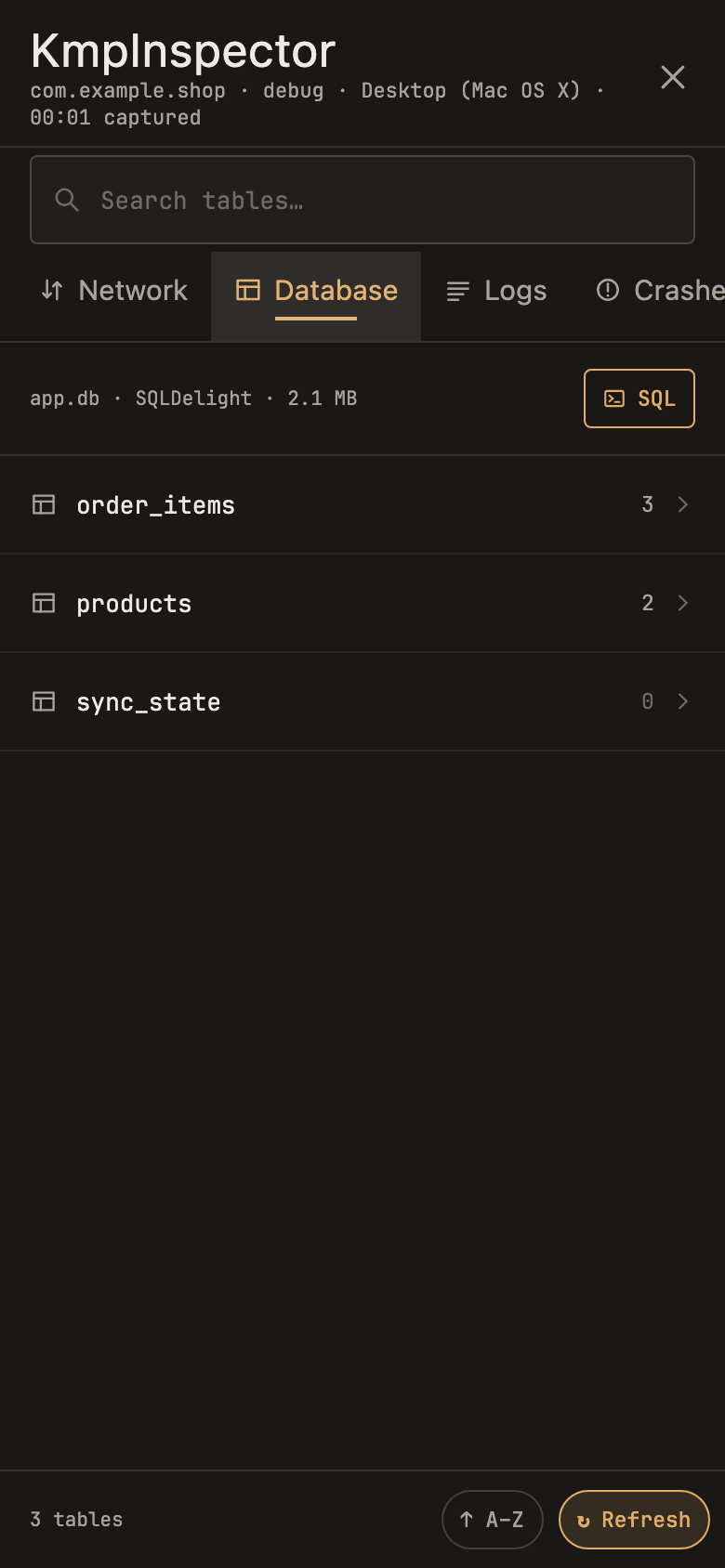
The Database panel opens with a summary line for the database and a list of every table with its row count. You can search the tables and sort them from A to Z. Tables are read when you attach, again every time the inspector opens, and whenever you tap Refresh, so what you see is never more than one tap out of date.
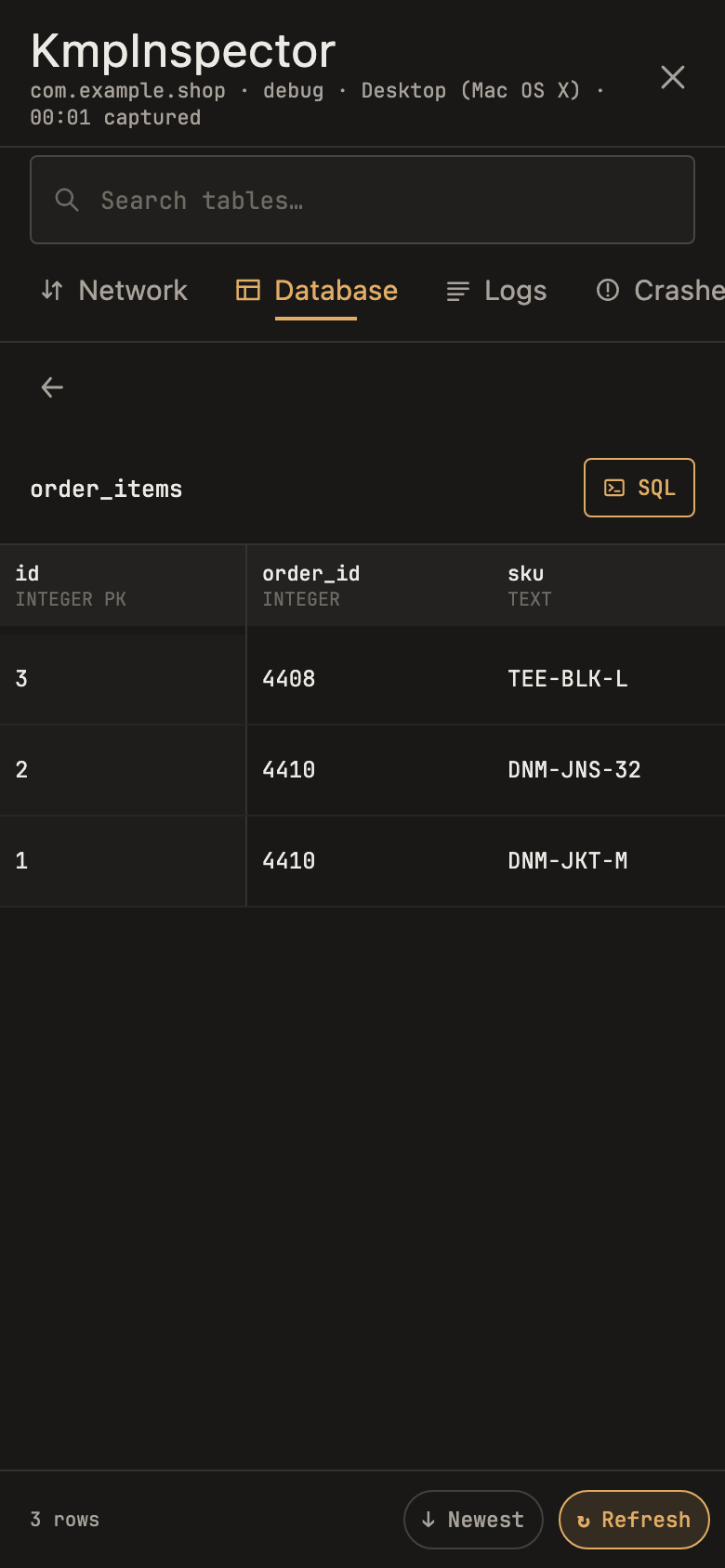
Opening a table shows a grid with each column's name and type. Rows can be shown newest first, and up to 500 rows are read per table, which keeps the panel fast even on large databases.
Edit a value in place
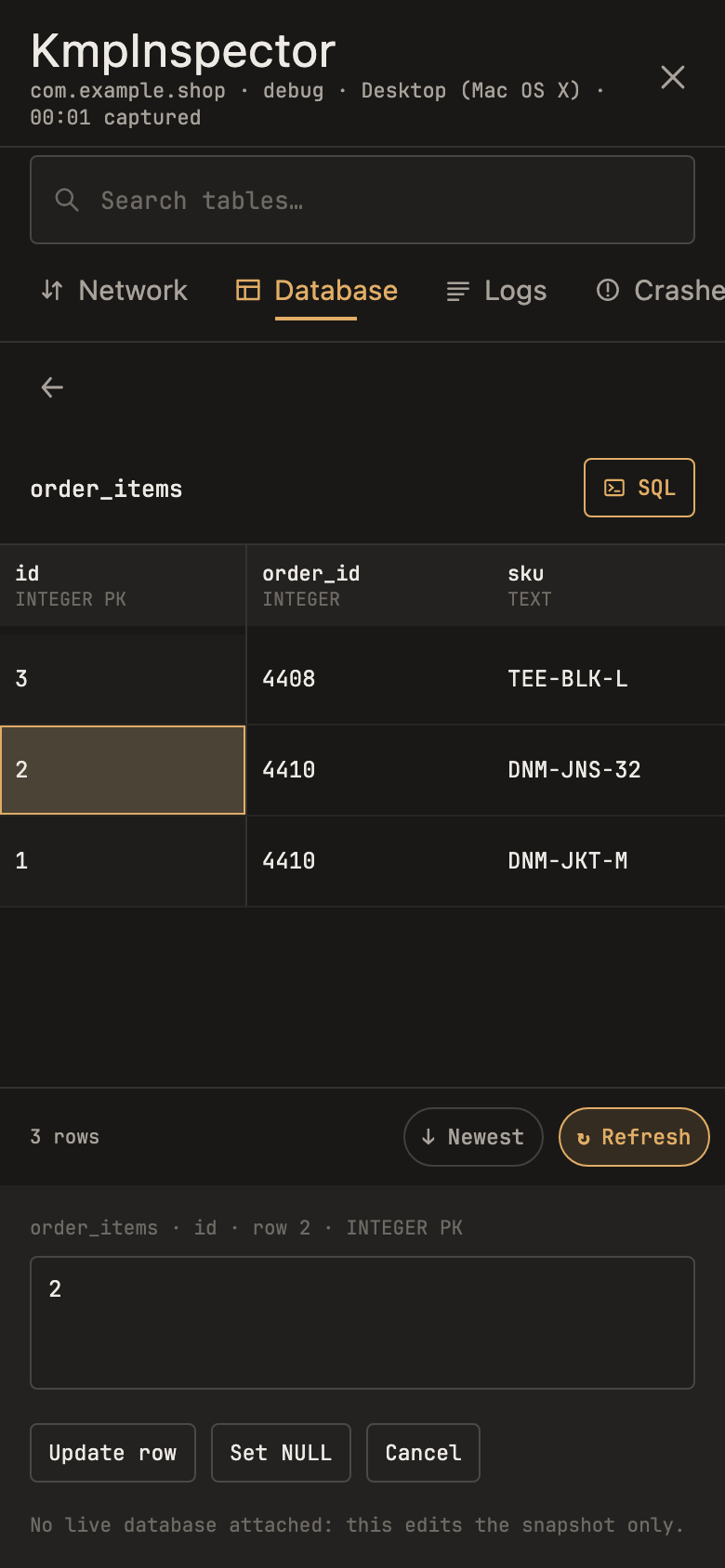
Tapping a cell opens an editor below the grid with Update row, Set NULL and Cancel. With a live Room database attached, the change is written straight back with an UPDATE addressed by the row's rowid, and a line is added to the Logs panel saying which table, column and row changed.
This is handy for testing edge cases without rebuilding the app: set a price to NULL, change a status, or push a date into the past, then see how the screen reacts. Values are written as text and SQLite converts them using the column's type.
Some tables are read-only. Tables created WITHOUT ROWID have no rowid to address a row by, so they can be viewed but not edited.
Run SQL queries
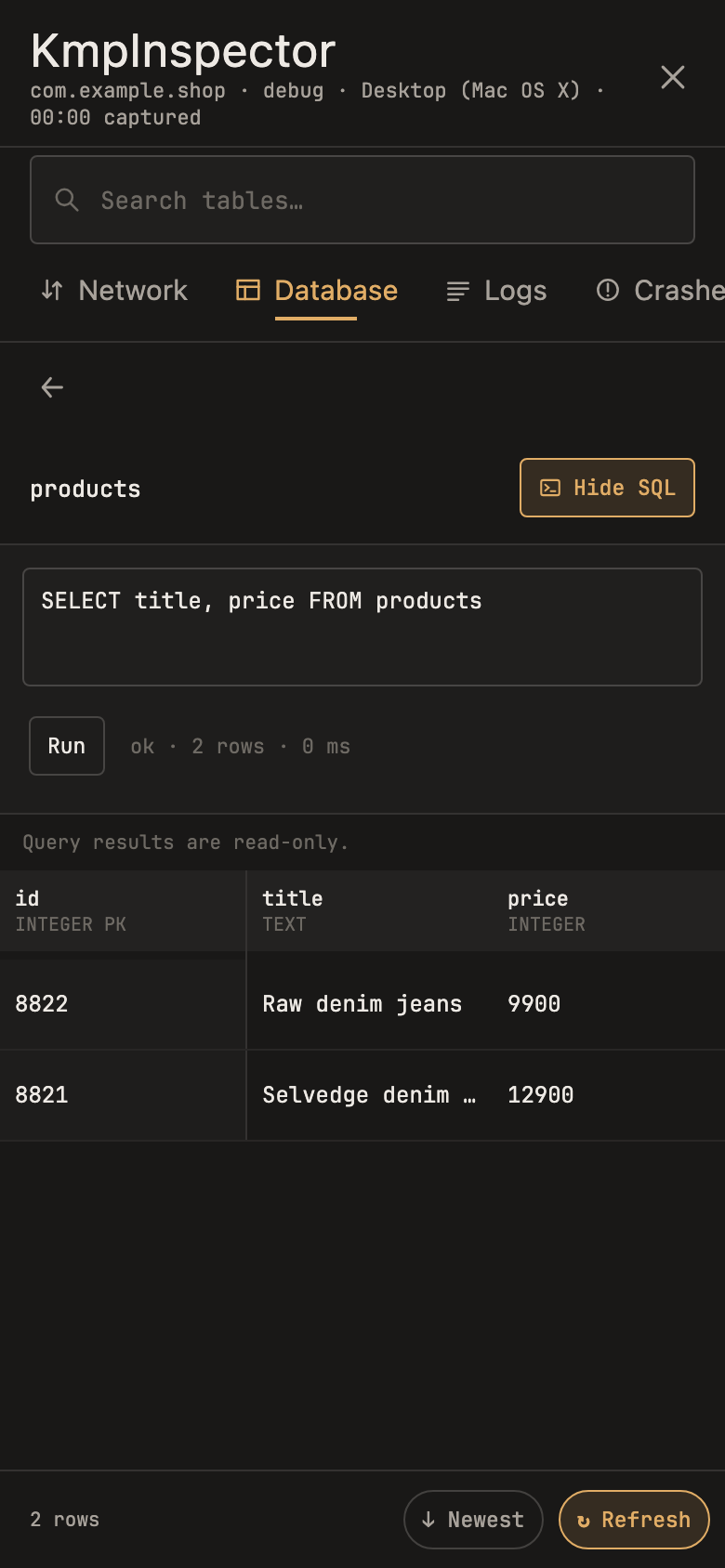
The SQL button opens an editor above the table. Type a SELECT or WITH statement and tap Run. With a live database attached, the query runs against the real database, and the status line shows how many rows came back and how long it took. Results are read-only and capped at 500 rows.
SELECT title, price
FROM products
WHERE price > 10000
ORDER BY price DESCAny table's visible rows can also be shared as CSV, which is useful when you want to look at the data in a spreadsheet or attach it to a bug report.
Common debugging tasks
A few situations where looking inside the database on the device saves real time:
- Checking a migration. After installing a new version over an old one, open the tables and confirm the new columns exist and old rows kept their data.
- Checking offline-first sync. Make a change with the network off, then look for the row and its sync status column before and after the app reconnects.
- Reproducing a user's bug. Edit the values on a test device until they match what the user described, then walk through the same screen.
- Checking soft deletes. If your app flags rows as deleted instead of removing them, confirm the flag is set and that the screen hides those rows.
Queries are especially useful for finding data that should not exist, such as order lines whose order is gone:
SELECT i.id, i.order_id
FROM order_items i
LEFT JOIN orders o ON o.id = i.order_id
WHERE o.id IS NULL
SQLDelight or another database
The Database panel is not tied to Room. You can publish any database's tables yourself with Inspector.setDatabase(...), passing the database info and a list of tables with their columns and rows. To make Refresh, cell edits and queries work, also pass a DatabaseController:
Inspector.setDatabase(
    info = DbInfo(fileName = "app.db", engine = "SQLDelight", sizeLabel = "2.1 MB"),
    tables = readTables(),
    controller = object : DatabaseController {
        override fun refresh() { /* re-read tables and call setDatabase again */ }
        override fun updateCell(table: String, rowId: Long, column: String, value: String?) { /* write one cell */ }
        override fun query(sql: String): DbTable? = runReadOnlyQuery(sql)
    },
)
Returning null from query tells the panel your host does not support queries, and it falls back to showing the snapshot of the table named in the query.
Keep your data safe
A tool that can read and edit your database must never ship switched on. Two things keep it out of production:
- Turn it off at runtime. With
Inspector.enabledset to false,RoomInspector.attachreads no tables and keeps no reference to your database. - Leave it out of the build. The Room companion has no no-op version, so put the dependency and the
attachcall behind the same build flag you use for the inspector. The details for each platform are in the release builds guide.
In a real app
Dukaan POS, my offline-first point of sale, keeps a whole shop's records in a Room database and attaches it with RoomInspector.attach, so the same Database panel is available in its Android, iOS and desktop builds. Shared Khata attaches its Room database on Android with KmpInspector.attach.
Frequently asked questions
Can I view a Room database on iOS?
Yes. Attach it with RoomInspector.attach(database) in common code, and open the Database panel from the bubble in the running app.
Does it need Android Studio or a cable?
No. Everything happens inside the app, so it also works on a tester's device running a debug build.
Can I run UPDATE or DELETE statements from the SQL editor?
No. The editor runs read-only SELECT and WITH statements. To change data, edit a cell in the table view.
How many rows does it show?
Up to 500 rows per table and per query.
Summary
With Room running everywhere, your database inspector should run everywhere too. One attach call gives you the tables, a SQL editor and cell editing inside the app on Android, iOS and desktop, with no cable and no file digging.
The library is open source on GitHub. For the network side, read how to inspect Ktor network requests in Kotlin Multiplatform.
Planning to share your data layer between Android and iOS? I offer Kotlin Multiplatform development, from a first shared module to a full app.